Facebook Badge

Keep updated ,Follow us here
Showing posts with label Redsn0w. Show all posts

Monday, April 4, 2011

Download Redsn0w 0.9.6RC9 (Guide)

Few minutes ago Dev-Team has released iOS 4.3.1 untethered jailbreak for both Redsn0w 0.9.6rc9 and PwnageTool 4.3, the jailbreak support all iOS devices except iPad 2.

NOTE: Users who rely on ultrasn0w unlock MUST stay away from Redsn0w.
Step 1: Download iOS 4.3.1 for your device (download links at the end)
Step 2: Update/Restore to iOS 4.3.1 firmware using the IPSW file via iTunes 10.2.1.
Step 3: Start Redsn0w and point it to the official iOS 4.3.1 firmware file.


Step 4: Now simply select “Install Cydia” and click “Next”. 
Step 5: Now make sure your device is both OFF and PLUGGED IN to the computer before you click “Next”.
 
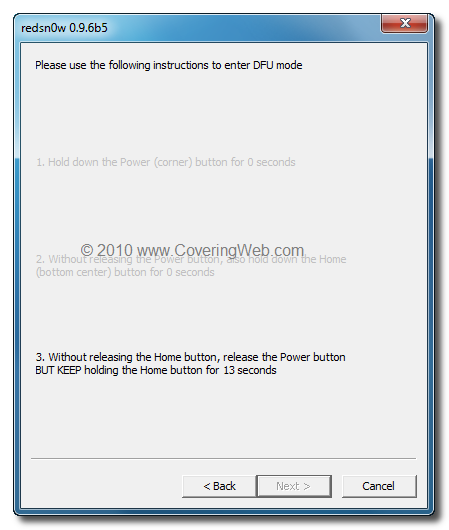
At this stage you will be presented with a screen where you will be guided on how to enter DFU mode. Quickly hold “Power” button and then while holding the “Power” button, you will now have to hold “Home” button too. Now after few seconds release “Power” button but keep holding “Home” button until installation begins.


Step 6: Wait shortly. Once done, your iPhone, iPad or iPod touch will restart automatically and you will find it fully jailbroken (untethered) on the latest iOS 4.3.1 firmware.

Download Redsn0w 0.9.6rc9 (Windows)
Download Redsn0w 0.9.6rc9 (Mac)
Download iOS 4.3.1 for iPhone, iPad and iPod touch
Download iTunes 10.2.1 for Windows / Mac OS X

Monday, March 21, 2011

Jailbreak iPhone 3.0.1 Firmware with redsn0w

iPhone OS 3.0.1 has been released to fix SMS exploit which could remotely control the victim’s iPhone. This guide will help you update to the latest iPhone firmware 3.0.1 while keeping your jailbreak and unlock intact. This guide applies to all the iPhone’s – iPhone 2G, iPhone 3G and iPhone 3GS:


You will need to first update/restore to the original iPhone OS firmware 3.0.1 on your iPhone by using the latest version of iTunes.

Download redsn0w 0.8 (download link given below) and start the application. Browse to the Original iPhone firmware OS 3.0 .ipsw file for your iPhone. Check the links below to download them. (NOTE: 3.0 not 3.0.1)
redsn0w will then verify to see if the .ipsw is valid.

Now redsn0w will automatically patch the original file.

Phone 2G users can select both “Install Cydia” and “Unlock” options. iPhone 3G and iPhone 3GS users should only check on “Install Cydia” to jailbreak. Dont check the option for “Icy”.

Now make sure your device is both OFF and PLUGGED IN to the computer before you click “Next”.


At this stage you will be presented with the screen where you will have to quickly hold “Power” button and then while holding the “Power” button, you will now have to hold “Home” button too. Now after few seconds release “Power” button but keep holding “Home” button until installation begins.

Sit back and enjoy while redsn0w will do all the rest for you. Once done, your iPhone will restart automatically and you will find it jailbroken with iPhone firmware version 3.0.1.

To check whether your iPhone has been updated to 3.0.1:

  • Navigate to Settings
  • Select General
  • Select About. Your iPhone OS version should now be: "3.0.1 (7A400)" or later

Now if you want to install “Icy”, follow the link here and read “Fix for Problem 5” to install “Icy”.

This guide will jailbreak iPhone 2G (iPhone 2G will also be unlocked), iPhone 3G and iPhone 3GS with iPhone OS 3.0.1. Now to unlock iPhone 3G and iPhone 3GS, follow the guide I posted here.

NOTE: redsn0w 0.8 was specifically released for iPhone 3GS. If you encounter problems while jailbreaking iPhone 2G and iPhone 3G, then I will recommend you to follow the jailbreaking steps above by using redsn0w 0.7 (download link given below).


Download iTunes 8.2.1


Download redsn0w 0.8 for Windows
Download redsn0w 0.8 for Mac OS X
Download redsn0w 0.8 for Linux
Download redsn0w 0.7.2 for Windows
Download redsn0w 0.7.2 for Mac OS X
Download Bootloader 3.9 (Required by iPhone 2G only)
Download Bootloader 4.6 (Required by iPhone 2G only)
Download Original firmware OS 3.0 (iPhone 2G)
Download Original firmware OS 3.0 (iPhone 3G)
Download Original firmware OS 3.0 (iPhone 3GS)

Monday, January 10, 2011

Redsn0w 0.9.7b6: Download Available & Fixes Skype Issues

Few minutes (not hours) ago the iPhone Dev Team released another update for Redsn0w 0.9.7 to fix Skype issues on iOS device. Redsn0w 0.9.7b6 is available for Mac OS X users only and in next version, the target will be adding iOS 4.1 monte so you don't need to pirate iOS 4.2b3 to allow untethered jailbreak on iOS 4.2.1.

The sixth beta is now available (testers ONLY please!). This version fixes Skype. Please do not pirate the 4.2b3 IPSW! Only those enrolled in the iPhone Developer program have legitimate access to that IPSW using these links (http://pastie.org/1403214) (the links won’t work unless you’re a legit developer currently logged in).

Unlike the last few betas, you can freely run beta6 over beta5 without a problem (but for testing purposes, we’d really like people to try both ways….from stock, and from already jailbroken).

Now that the sandbox, Bluetooth, and Skype issues are fixed, our next priority is porting Monte back to 4.1. We’ll also try to make the Windows version less painfully slow.
To use Redsn0w 0.9.7b5, use our guide posted here while removing STEP 4 since it doesn't required usbmuxd anymore.

Download Redsn0w 0.9.7b6 for Mac HERE.
Download iOS 4.2.1 for iPhone 4, 3GS, 3G, iPad, iPod touch HERE.
Download iTunes 10.1.1 for Mac and Windows HERE.

Sunday, January 9, 2011

iPhone Dev-Team Updates RedSn0w to Fix Bluetooth Issues With Untether

The iPhone Dev-Team has updated RedSn0w to fix Bluetooth issues with the 'Backup Plan' untether.

The fifth beta is now available (testers ONLY please!). Bluetooth is now working (and any sandbox-related issues should be resolved too). Please do not pirate the 4.2b3 IPSW! Only those enrolled in the iPhone Developer program have legitimate access to that IPSW.


There is actually a Windows version of beta5, but it’s excruciatingly slow compared to the Mac version because it’s forced to use files on your hard drive instead of RAM while it’s processing the very large IPSW images. It really is very very painfully slow, so we probably won’t be releasing it for testing purposes unless it can be sped up somehow.

You can download RedSn0w .0.7b5 from HERE.
You can find how to use this version of RedSn0w to untether HERE.
You can read more HERE.

Redsn0w 0.9.7 Untethered Jailbreak for iOS 4.2.1 Released ! Here’s How To Do It Step By Step


As promised, the iPhone Dev Team has released the necessary jailbreak tools which can untether the latest iOS 4.2.1 jailbreak on iPhone 4, iPod touch 4G, and iPad. Old-generation iOS devices already have untethered jailbreak on iOS 4.2.1.
For those who don't know, Apple has already patched the untethered patch in iOS 4.2.1 update so it becomes tethered jailbreak on new-generation devices mentioned above. Being tethered jailbroken means that once your iPhone is successfully jailbroken, you'll need to connect your iPhone to your computer if you ever need to reboot your iPhone or your iPhone loses battery charge. The updates Redsn0w 0.9.7b1 brings untethered jailbreak for those devices on iOS 4.2.1.
Below is the full step-by-step guide to jailbreak your iOS device using Redsn0w 0.9.7b1 and get untethered jailbreak immediately. 

STEP 1: First of all, you have to jailbreak your iOS 4.2.1 device using Redsn0w by following the step by step instructions posted here.

STEP 2: Once jailbroken, tap on Cydia and check if your 4.2b3 SHSH blobs saved or not. You should see "SHSH: 4.2b3" in the status as shown in the screenshot below:


STEP 3: Now download Redsn0w 0.9.7b1 from the links given below and connect your iPhone, iPod touch or iPad.

STEP 4: Since this is a beta release, you must have usbmuxd that can be download from here. Now start terminal in python-client directory then type in the following commands:
chmod +x tcprelay.py

./tcprelay.py -t 22:2222
STEP 5: Now start Redsn0w 0.9.7b1 and point it to the official iOS 4.2.1 .IPSW file.
STEP 6: In the next page, check on Jailbreak Monte which untethers your iOS 4.2.1 jailbreak then point it to iOS 4.2 beta 3 firmware (Google it if you don't have a developer account).
STEP 7: Final step is to put your iOS device in DFU Mode using Redsn0w instructions on the screen.

Finally, sit back and let Redsn0w go in bunch of steps and you'll finally get untethered jailbreak on your new-generation iOS device.

Please note that this is a beta release, and upcoming versions will bring support for Windows users and will have built-in usbmuxd for easy process.

Download Redsn0w 0.9.7b1 for Mac OS X
Download iOS 4.2.1 for iPhone, iPad and iPod touch
Download iTunes 10.1.1 for Windows / Mac OS X
Thanks: coveringweb.com

Tuesday, January 4, 2011

HOW TO: Boot Your Tethered Jailbroken iPhone, iPod Touch and iPad Using Redsn0w 0.9.6rc7 (Windows & Mac)

Few hours ago, the iPhone Dev-Team has just released Redsn0w 0.9.6rc7 with one click tethered iOS 4.2.1 jailbreak boot support. Now I will show you how to quickly boot your tethered jailbroken iPhone using RedSn0w 0.9.6rc7 for Windows and Mac. Check out the step by step guide after the jump.


For Windows users:

STEP 1: Download Redsn0w 0.9.6rc7 for Windows and the proper firmware for your device then place them in one folder, let's name it "Pwnage" on you desktop (Download links at the end)

STEP 2: Double Click on Redsn0w file to extract it.
STEP 3: Press on Windows icon at the task bar and type "run" then type "cmd" to start Command Prompt on Windows with Administrative privileges.
STEP 4: Input the following command :
  • For devices with the new bootrom:
%homepath%\Desktop\Pwnage\redsn0w_win_0.9.6rc7\redsn0w.exe -j -i %homepath%\Desktop\Pwnage\iPhone3,1_4.2.1_8C148_Restore.ipsw
  • For devices with the old bootrom (iPod 2G, iPhone 3GS):
%homepath%\Desktop\Pwnage\redsn0w_win_0.9.6rc7\redsn0w.exe -j -o -i %homepath%\Desktop\Pwnage\iPhone2,1_4.2.1_8C148a_Restore.ipsw
(Important note: modify the name of the folder "Pwnage", and IPSW file as necessary)


STEP 5: RedSn0w will now open, follow the steps to put your iPhone into DFU mode and boot your device in a tethered jailbroken state.

For Mac users:

STEP 1: Download Redsn0w 0.9.6rc7 for Mac and the proper firmware for your device then place them in one folder let's name it "Pwnage" on you desktop (Download links at the end)
STEP 2: Double Click on Redsn0w file to extract it.

STEP 3: Launch Terminal from Applications:Utilities folder


STEP 4: Enter the following command
  • For devices with the new bootrom
open ~/Desktop/Pwnage/redsn0w_mac_0.9.6rc7/redsn0w.app --args -j -i ~/Desktop/Pwnage/iPhone3,1_4.2.1_8C148_Restore.ipsw
  • For devices with the old bootrom (iPod 2G, iPhone 3GS):
open ~/Desktop/Pwnage/redsn0w_mac_0.9.6rc7/redsn0w.app --args -j -o -i ~/Desktop/Pwnage/iPhone2,1_4.2.1_8C148a_Restore.ipsw
(Important note: modify the name of the "Pwnage", and IPSW file as necessary)
STEP 5: RedSn0w will now open, follow the steps to put your iPhone into DFU mode and boot your device in a tethered jailbroken state.
Now you successfully Booted your tethered jailbroken iPhone, iPod touch and iPad with these few simple steps [iClarified]

Download iOS 4.2.1 for iPhone 4, 3GS, 3G, iPad, iPod touch
Download Redsn0w 0.9.6rc7 for Windows
Download Redsn0w 0.9.6rc7 for Mac
Download iTunes 10.1.1 for Windows and Mac

Friday, December 3, 2010

HOW TO: Activate iPhone 4, 3GS, 3G Without Original SIM or Hacktivation with SAM & Redsn0w 0.9.6b6

Few minutes ago, a new mix-up between iPhone dev-team and sbingner, has been done to allow you to activate your iPhone 4, 3GS and 3G without using original SIM or Hactivation. Thanks to sbingner's new tool which called SAM (Subscriber Artificial Module) and redsn0w 0.9.6b6. Moreover this mix-up has fixed the battery consuming after unlocking iPhone 3GS/3G with ultrasn0w 1.2. Let's check out how use this package after the jump.
STEP 1: Download Redsn0w 0.9.6b6 for Windows and Mac, (Links at the end)

STEP 2: For iPhone 3GS/3G users follow our previous guide posted here, for other devices follow this guide, (But be sure you are using Redsn0w 0.9.6b6)

STEP 3: After you finish jailbreaking your device, start Cydia and add http://repo.bingner.com repository.
STEP 4: Then install “SAM” and “SAMPrefs”.

STEP 5: Launch Redsn0w 0.9.6b6 again, and select “Deactivate” option.
STEP 6: Navigate to Settings > SAM and click "De-Activate iPhone"

STEP 7: Connect your iPhone to your PC then launch iTunes, allow iTunes to activate your iPhone officially. You will see this message "iPhone is activated"

According to sbingner : If iTunes says invalid SIM, you will need to manually select the appropriate carrier under one of the methods besides "Automatic" and click on a SIMID.

STEP 8: Here's the final step, go now and follow our guide posted here to unlock your device with ultrasn0w 1.2

Download Redsn0w 0.9.6b6 for Windows and Mac.

Thursday, December 2, 2010

Download Redsn0w 0.9.6b6 to Activate iPhone 3GS / 3G and Fix Battery Drain after Ultrasn0w 1.2

iPhone Dev-Team has just released redsn0w 0.9.6b6 (Windows and Mac) to jailbreak iOS 4.2.1 on iPhone 3GS/3G and update their basebands to iPad baseband 6.15.00, as most of you know that redsn0w 0.9.6b5 did that, but the new version of redsn0w 0.9.6b6 brings activation without hacktivating, or using original SIM card and increases battery life substantially, as we reported earlier, it was the most prevalent problem after unlocking iPhone 3GS/3G with ultrasn0w 1.2
Developer @sbingner (author of TetherMe) has made some excellent progress devising a new hactivation method that kills two birds with one stone for all you ultrasn0w unlockers.  His tool, “Subscriber Artificial Module (SAM)” tricks your iPhone and iTunes into creating legitimate activation tickets even though you’re unlocked with ultrasn0w.  This means you get the full benefit of push applications, and your battery life increases substantially.  If you’d like to try it out, check out http://www.bingner.com/SAM.html
To help make it easier to try out @sbingner’s tool, we’ve updated redsn0w to include a new “Deactivate” option for the 3G and 3GS.  Use this option *after* you’ve installed SAM…it will remove the normal patches made to lockdownd and let SAM take over.  (sbingner plans on making a button to do this within SAMPrefs too).  Great work, @sbingner!
Thanks @sbingner for the hard work, as usual we will prepare the full step by step guide, showing you how to use SAM and the newly redsn0w 0.9.6b6. Stay tuned.

UPDATE: Here is the step by step guide showing how to Activate iPhone 4, 3GS, 3G Without Original SIM or Hacktivation with SAM & Redsn0w 0.9.6b6 Click Here.

Download Redsn0w 0.9.6b6 for Windows
Download Redsn0w 0.9.6b6 for Mac

Sunday, November 28, 2010

HOW TO: Update / Unlock iPhone 3GS / 3G Baseband 06.15.00 with Redsn0w 0.9.6b5 on iOS 4.2.1 / 4.1 [Windows & Mac]

Well, here's the iPhone Dev-Team has just released redsn0w 0.9.6b5 to jailbreak iPhone 3GS and 3G on iOS 4.2.1 and update baseband to 06.15.00 which can be unlocked with the newly released ultrasn0w 1.2, the redsn0w 0.9.6b5 is available for both windows and mac users.
The new redsn0w 0.9.6beta5 is out. It gives both Windows and OSX users the ability to flash the iPad 06.15 baseband on iPhone3G or iPhone3GS. It fetches the baseband files directly from Apple for now (the only IPSW you ever point it at is the stock IPSW for the FW on your iPhone right now). There may be a long delay while it’s doing this (their servers are currently getting pounded).

WARNING — YOU DO THIS AT YOUR OWN RISK!  PLEASE UNDERSTAND THE CONSEQUENCES OF UPDATING TO 06.15.
  1. There is no way to come back down from 06.15, and there’s no hiding the baseband version from Apple. You’ll be voiding your warranty in a very obvious way.
  2. If some future baseband comes out with a critical fix, you won’t be able to update to it if it remains down in the 05.xx sequence (then again, you wouldn’t update to it if you wanted to keep your unlock anyway).
  3. Starting with FW 4.2.1 if you have 06.15 on your iPhone you won’t ever be able to restore to stock firmware (it will fail).  You’ll need to only restore to custom IPSWs (then again, if you’re unlocker you should already be doing that).
For whom is this Guide:
This version of redsn0w 0.9.6b5 is developed ONLY for iPhone 3GS and 3G users who rely on unlock. Precisely,  This guide showing how to jailbreak and update baseband to 06.15.00 for ONLY iPhone 3GS and 3G who have unlocked devices.

Unsupported devices, what have to do:
iPhone 4 and 3GS users who don't rely on unlock, you can follow the same guide but with redsn0w 0.9.6b4 to jailbreak their devices on iOS 4.2.1, see guide Posted Here.

Here's the step by step guide:

STEP 1: Download redsn0w 0.9.6b5,  iOS 4.2.1 for your device(download links at the end).

STEP 2: Update to 4.2.1 firmware using the IPSW file you just downloaded via iTunes 10.1.

STEP 3: Launch Redsn0w 0.9.6b5,  and browse for iOS 4.2.1 firmware final version.
STEP 4: Now you have to select "Install Cydia" and "Install iPad baseband", and then click "Next" (in this step redsn0w will update your baseband to 06.15.00 which works with ultrasn0w 1.2)
STEP 5: Now make sure your device is both OFF and PLUGGED IN to the computer before you click “Next”.
STEP 6: At this stage you will need to put your iPhone in DFU mode by holding “Power” button and then while holding the “Power” button, you will now have to hold “Home” button too. Now after few seconds release “Power” button but keep holding “Home” button until installation begins.
 
STEP 7: You will Get a Jailbroken Device on the latest iOS 4.2.1  and the unlockable baseband 06.15.00

STEP 8: This step is only for these devices iPhone 4, 3GS (New Bootrom), iPod touch 4G,  3G, 2G, iPad. While this is tethered jailbreak and whenever you want to do anything related to jailbreak like SSH your device, or running Cydia, you must first run your device in the so called “jailbroken state” on every reboot by using “Just boot tethered right now” option.

How to unlock iPhone 3GS / 3G on iOS 4.2.1 / 4.1 using ultrasn0w 1.2 :
This is the final step to get your device unlocked on iOS 4.2.1 / 4.1 with the newly release ultrasn0w 1.2, follow our full step by step guide Posted Here.

Download iOS 4.2.1 for iPhone, iPod touch and iPad
Download Redsn0w 0.9.6b5 for Windows
Download Redsn0w 0.9.6b5 for Mac
Download iTunes 10.1 for Windows or Mac

Tuesday, November 23, 2010

White Cydia Icon and Safari Crashing When Using Redsn0w 0.9.6b4 to Jailbreak iOS 4.2.1?

After releasing iOS 4.2.1, the dev-team updated redsn0w to version 0.9.6b4 to jailbreak iPhone 4, 3GS, 3G, iPod touch 4G, 3G, 2G and iPad, I received many comments complaining about white Cydia icon and Safari crashing after jailbreaking their devices.
https://blogger.googleusercontent.com/img/b/R29vZ2xl/AVvXsEhNeSrLt_DwAugrQDehjdbRlyuUv_Wdn787o5plOCyif3ka2hjMPHfOrREXfTWGHgQoqmRFkOyaxlcdmFbWN35s4qmK1ANy0rtF8ojj-zmzIBDelcupeVN8XQSYOYaAXBCUBUKTsnWHXMo/s1600/4255_pic_resized.jpg
Therefore, dev-team has sent a new blog post update while the concept of a “tethered” jailbreak is pretty new to many people, let's check out this:
The notion of a “tethered” jailbreak is pretty new to many people, so here’s a quick rundown on what to expect:

1. If you’re on an iPhone3G, old-bootrom iPhone3GS, or non-MC ipt2g, life is easy. redsn0w installed an untethered jailbreak and so nothing below applies.
2. “Tethered” does not mean you cannot boot at all without PC/Mac assistance. If you have not installed any tweaks that hook into important programs like SpringBoard or CommCenter, your device will actually boot. However, jailbreak programs like Cydia won’t work (and Cydia may still have a white icon). Also, certain built-in apps that had to be moved by Cydia will fail (Safari being the most noticeable example).
3. If you’ve installed MobileSubstrate tweaks that hook into SpringBoard or other important programs, your boot will actually fail (you’ll get stuck at the Apple logo). You need to use redsn0w to “Just boot tethered right now”.

Remember, @comex and others are working on a way to untether the 4.2.1 jailbreak. Meanwhile, the above 3 points hopefully will make it all seem less confusing :)
You can avoid the reasons above to enjoy a jailbreak free of bugs (i.e. White Cydia Icon and/or Safari Crashing), but I highly recommend to wait for the comex untethered jailbreak on 4.2.1 which expected to be very professional (still no ETA). Let me know if you still facing these bugs or not via the comment section, stay tuned.

You may also like:

HOW TO: Jailbreak iOS 4.2.1 iPhone 4, 3gs, 3g, iPad, iPodTouch with Redsn0w 0.9.6b4

Few moment ago we broke the news about the release of Redsn0w 0.9.6b4 to jailbreak iOS 4.2.1 on iPhone 4, 3GS, 3G, iPod touch 4G, 3G and iPad with working MobileSubstrate, as we told you earlier that redsn0w 0.9.6b4  is based on GeoHot’s limera1n bootrom exploit.
The bad new is that right now, the redsn0w 0.9.6b4 is a tethered or semi-tethered jailbreak for some devices (i.e. you will lose your jailbreak every time you reboot your iDevice, so you have to follow the following steps every reboot to have a jailbroken device )

Untethered Devices:
  • iPhone 3GS (old bootrom)
  • iPhone 3
  • iPod touch 2G (Non-MC Model)

Tethered Devices:
  • iPhone 3GS (new bootrom)
  • iPhone 4
  • iPad
  • iPod touch 2G (MC Model)
  • iPod touch 3G
  • iPod touch 4G
NOTE: Those of you who rely on a carrier unlock stay away from Redsn0w and iOS 4.2.1.

GUIDE:

STEP 1: Download redsn0w 0.9.6b4,  iOS 4.2.1 for your device(download links at the end).

STEP 2: Update to 4.2.1 firmware using the IPSW file you just downloaded via iTunes 10.1.

STEP 3: Launch Redsn0w 0.9.6b4,  and browse for iOS 4.2.1 firmware final version 

STEP 4: Select "Install Cydia" and click on "Next"
STEP 5: Now make sure your device is both OFF and PLUGGED IN to the computer before you click “Next”.
STEP 6: At this stage you will need to put your iPhone in DFU mode by holding “Power” button and then while holding the “Power” button, you will now have to hold “Home” button too. Now after few seconds release “Power” button but keep holding “Home” button until installation begins.

STEP 7: You will Get a Jailbroken Device on the latest iOS 4.2.1  as soon as the process ends.

STEP 8: This step is only for these devices iPhone 4, 3GS (New Bootrom), iPod touch 4G,  3G, 2G, iPad. While this is tethered jailbreak and whenever you want to do anything related to jailbreak like SSH your device, or running Cydia, you must first run your device in the so called “jailbroken state” on every reboot by using “Just boot tethered right now” option.

Download iOS 4.2.1 (Final version) for your device version.
Download Redsn0w 0.9.6b4 for Windows and Mac
Download iTunes 10.1 for Windows or Mac

Download Redsn0w 0.9.6b4 to Jailbreak iOS 4.2.1

As we expected, the dev-team has just sent a new blog post update announcing the release of Redsn0w 0.9.6b4 to jailbreak the newly released iOS 4.2.1 on iPhone, iPod touch and iPad, for who don't know, Redsn0w 0.9.6 b4 is based on GeoHot’s limera1n bootrom exploit.
redsn0w version 0.9.6b4 is now available for your 4.2.1 jailbreaking pleasure. Please read all the above to understand what this jailbreak currently entails.
As usual we will prepare the full how to guide to jailbreak all iDevices on iOS 4.2.1, for now you can check the full details about i|OS 4.2.1 jailbreak and unlock in this post.

Update 1: As we promised, you can go and check out our guide to jailbreak all iOS devices on iOS 4.2.1 using Redsn0w 0.9.6b4  posted here.

Download redsn0w jailbreak for iOS 4.2.1 on iPhone, iPod touch and iPad [Windows and Mac]

Sunday, November 21, 2010

HOW TO: Install Cydia Tweaks & Apps using Redsn0w 0.9.6b3

Earlier today we posted that iPhone Dev Team has released Redsn0w 0.9.6b3 with OpenSSH and APT patches which is really useful for app developers who wants to try their Cydia tweaks and jailbreak apps on iOS 4.2.1.

As you know, Cydia is still broken on iOS 4.2.1 and the new version is not out yet but with the latest version of Redsn0w, you can install jailbreak apps without Cydia installed on your iOS device. Your jailbreak-app package must be in gzip-compressed tar format that Redsn0w can read and also it must be around 15MB in size. The iPhone Dev Team already released OpenSSH package can be download from here which is used to install OpenSSH using the instructions below.

STEP 1: Download Redsn0w 0.9.6b3 (Windows - Mac OS X).

STEP 2: Your device must be on iOS 4.2.1, and you have to save .IPSW firmware of iOS 4.2.1 on your desktop (helpful link).

STEP 3: Once you download Redsn0w, launch it and click Browse then select the suitable iOS 4.2.1 .IPSW file for your iOS device so RedSn0w can recognize it.
STEP 4: In this new page, mark on “Install Custom Bundle” & “Just boot tethered right now” options. Then select the package you want to install as shown in the screenshots below:
STEP 5: After few minutes, the tool will recognize the package then click on Next and you will be guided to put your iOS device in DFU mode.

STEP 6: Once your device in DFU mode, it will reboot with SSH package installed. Now use Cyberduck (Mac OS X) or WinSCP (Windows) to SHH into your device.
From now on, you will need to boot using Redsn0w whenever your device is rebooted until comex make iOS 4.2.x jailbreak untethered. So, whenever you want to SSH into your device, you must first run your device in the “jailbroken state” on every reboot by using “Just boot tethered right now” option in Redsn0w. We'll be happy to answer your questions. [via iPhoneItalia]

UPDATE 1: Here's how to install Cydia on jailbroken iOS 4.2.1 devices via SSH enabled devices, check full guide posted here.