Facebook Badge

Keep updated ,Follow us here
Showing posts with label how to. Show all posts

Monday, March 7, 2011

iOS 4.3 GM Jailbroken Already Using PwnageTool. Here’s A Complete How-To Guide !


Yes you read that right ! The just released iOS 4.3 GM for iPhone 4 has been jailbroken already. The jailbreak though is tethered only for now, which means that you will have to boot it into jailbroken state every time you reboot.

Support for iPad, iPhone 3GS and iPod touches is on the way ! Simply follow the instructions below to jailbreak iOS 4.3 GM on iPhone 4 using a combination of PwnageTool 4.2, Universal Ramdisk Fixer and tetheredboot utility.
Here’s what you will need:
  • PwnageTool 4.2
  • Access to iOS 4.3 GM firmware
  • iTunes 10.2
  • Mac OS X
  • PwnageTool bundle for iOS 4.3 GM
  • Universal Ramdisk Fixer
  • tetheredboot utility
Note:
  • Cydia is fully working on iOS 4.3 GM.
  • It is a semi-tethered jailbreak.
  • Your baseband will not be upgraded during restore process.
Modifying PwnageTool
Step 1: Download PwnageTool bundle for your version of iOS device. Extract the .zip folder, in there you will find a .bundle file, for this guide, we are using iPhone 4 bundle iPhone3,1_4.3_8F190.bundle. Move this file to your desktop.
Step 2: Download PwnageTool 4.2 and copy it to /Applications directory. Right click, and then click on “Show Package Contents” as shown in the screenshot below.
iOS 4 Jailbreak (1)
Step 3: Navigate to Contents/Resources/FirmwareBundles/ and paste iPhone3,1_4.3_8F190.bundle file in this location.
Jailbreak 4.3 (1)
Creating Custom Ramdisk for iOS 4.3 Custom Firmware
Step 4: Download Universal Ramdisk Maker and simply install it as shown in the screenshots below. This is important because Ramdisk in the current version of PwnageTool is broken. This Universal Ramdisk Maker basically patches it correctly for iOS 4.3 firmware.
Ramdisk (1)
Ramdisk (2)
Ramdisk (3)
Ramdisk (4)
Building iOS 4.3 Custom Firmware
Step 5: Download iOS 4.3 GM firmware. Move this file to your desktop.
Step 6: Start PwnageTool in “Expert mode” and select your device:
PwnageTool 4.3 (4)
Step 7: Browse for iOS 4.3 GM firmware for your device as shown in the screenshot below:
Jailbreak 4.3 (4)
Step 8: Now select “Build” to start creating custom 4.3 firmware file:
PwnageTool 4.3
Step 9: PwnageTool will now create the custom .ipsw file for your iPhone which will be jailbroken.
PwnageTool 4.3 (2)
Step 10: Now follow the following steps to enter DFU mode using PwnageTool:
  • Hold Power and Home buttons for 10 seconds
  • Now release the Power button but continue holding the Home button for 10 more seconds
  • You device should now be in DFU mode
PwnageTool 4.1 (3)
Restore iOS 4.3 Custom Firmware Using iTunes
Step 11: Start iTunes, click on your iOS device icon from the sidebar in iTunes. Now press and hold left “alt” (option) button on Mac, or Left “Shift” button if you are on Windows on the keyboard and then click on “Restore” (Not “Update” or “Check for Update”) button in the iTunes and then release this button.
Update iPhone 4 4.2.1 (4)
This will make iTunes prompt you to select the location for your custom firmware 4.3 file. Select the required custom .ipsw file that you created above, and click on “Open”.
Step 12: Now sit back and enjoy as iTunes does the rest for you. This will involve a series of automated steps. Be patient at this stage and don’t do anything silly. Just wait while iTunes installs the new firmware 4.3 on your iOS device. Your iOS device screen at this point will be showing a progress bar indicating installation progress. After the installation is done, your iOS device will be jailbroken on iOS 4.3.
Booting in Tethered Mode
Last but not the least, since there is no untethered jailbreak for iOS 4.3 yet, we will have to boot it into a tethered jailbroken state. To do this, we will make use of a utility named “tetheredboot” as shown in the steps below.
Step 13: Download tetheredboot.zip utility for Mac OS X and extract the .zip file.
Step 14: First, we will need two files from the custom iOS 4.3 GM firmware namely: kernelcache.release.n90 and iBSS.n90ap.RELEASE.dfu. To do this, make a copy of your custom iOS 4.3 GM file that you created above, change the extension of this file from .ipsw to .zip, and then extract this .zip file.
Now copy kernelcache.release.n90 file, and then copy iBSS.n90ap.RELEASE.dfu files which are found under /Firmware/dfu/.
Move all these files, and tetheredboot utility to a new folder named “tetheredboot” on the desktop as shown in the screenshot below.
Jailbreak 4.3 (2)
Step 15: Turn off your iOS device, and start Terminal on OS X and run the following commands:
sudo -s
enter your administrator password, then:
/Users/TaimurAsad/Downloads/tetheredboot/tetheredboot
/Users/TaimurAsad/Downloads/tetheredboot/iBSS.n90ap.RELEASE.dfu
/Users/TaimurAsad/Downloads/tetheredboot/kernelcache.release.n90
You will have to of course replace “TaimurAsad” with the name of the directory on your computer.
now press enter.
Jailbreak 4.3 (3)
You should now see some code running in the Terminal window, at some point, it will ask you to enter DFU mode. Now follow the following steps to enter DFU mode:
  • Hold Power and Home buttons for 10 seconds
  • Now release the Power button but continue holding the Home button for 10 more seconds
  • You device should now be in DFU mode
Now wait for your device to boot, Terminal at this point will be showing “Exiting libpois0n” message. After a short while, your iPhone, iPad or iPod touch will be booted in a jailbroken tethered mode !
iOS 4.3 Cydia
UPDATE 1: A new iOS 4.3 PwnageTool bundle for iPhone 4 is now available which eliminates the need of Step 4 above for creating Ramdisk. You can download this new bundle from here.
UPDATE 2: iOS 4.3 PwnageTool bundle for new and old bootrom iPhone 3GS can be downloaded from here.
UPDATE 3: Full jailbreak instructions for jailbreaking iPad on iOS 4.3 can be found here.
UPDATE 4: Instructions on how to jailbreak iPod touch 4G and 3G can be found here.

Saturday, December 11, 2010

HOW TO: Get Cydia Tweak Updates Faster!

Are you tired of the Cydia reloading the data just to see new tweaks in Cydia? Well now you can check them using an RSS feeder! This guide will show you how to set everything up to show you how to check your Cydia updates in no time!
STEP 1: Download an RSS Feeder. I recommend MobileRSS

STEP 2: If you don't already have a Google Account, you can register for one here.

STEP 3: Next, click this link here. After that, press the Google Button to add it to Google Reader.

STEP 4: Log in to your Google Account and it should add by itself.

STEP 5: You can now view the RSS Feeds via MobileRSS! All you have to do is press "All Items" to view your updates.

Give it a try now, and don't forget to share your experience on the comment section. [via iDB]

Thursday, December 9, 2010

Restore iPhone 3GS, 3G to iOS 4.2.1 / 4.1 on 06.15.00 Baseband After Using Ultrasn0w 1.2 [How to Guide]

In case you have unlocked your iPhone 3GS / 3G by flashing iPad baseband 6.15.00 with ultrasn0w 1.2 on iOS 4.2.1, and have issues while restoring your device, here is Sherif Hashim the guy behind ultrasn0w unlock tool, has posted a simple guide showing how to restore your iPhone 3GS / 3G to avoid iTunes errors.
Note: To restore your iPhone 3GS from 4.2.1 to 4.1, you must have saved SHSH blobs for iOS 4.1.

For PwnageTool users:
A :  If you are on Mac and use PwnageTool: If you used pwnage tool then you will have to create a “new” custom 4.1 or 4.2.1 and say “No” when you are offered the BB update to 6.15.00 since you already have it, then build the custom ipsw and restore to that.
For Redsn0w users:
B : If you use(d) Redsn0w:

B.1: If you are currently on 4.1, then you can restore to official 4.1 again, and when you see error 1015 pop-up, you kick your device out of recovery mode using TinyUmbrella, use redsn0w and don’t check “ipad BB update” because you already have that Here Is How To Restore iPhone 3G And iPhone 3GS While On Baseband 06.15.00 And Having Issues icon smile

B.2: If you are currently on 4.2.1 then you’ll have to restore back to 4.1 (because 4.2.1 will not allow you to kick the phone out of recovery when 1015 occurs due to the silly BB / iOS mismatch check added there) , then do the same steps as CASE-1.
How to go again to iOS 4.2.1:
If you want to go again to 4.2.1 your only way is to use a custom 4.2.1 done by pwnage tool in the same steps mentioned in A .
Try Hashim's methods above to restore you device between 4.2.1 and 4.1, it worth trying. Don't forget to tell us about your experience.

Monday, December 6, 2010

How to Switch Back to Old Facebook Profile Page Layout

Facebook has introduced the new design for profile pages with prominent display of basic profile information, latest photos, friends list and more. However, some users may not like the new design and want to revert back to old Facebook profile page layout. Do you want really to switch back to old Facebook profile page layout design?
Well, technically you can't revert back to old Facebook profile layout as Facebook Help Center (http://facebook.com/help/?faq=19409) notes “You will not be able to switch back to the old design after upgrading”.

Though this, some users have reported that they have successfully switched back to the old layout by deactivating Facebook account for 10 - 15 minutes and then reactivate it again, you will get the old Facebook Profile Page back. I have just tried that way and it works for me. So, did it work with you?

Sunday, December 5, 2010

HOW TO: Upgrade to New Cydia on iOS 4.2.1

In case if you still didn't update your Cydia to the new version on your iOS 4.2.1, and while there is no option to do the update directly from Cydia, I will show you how to do this with a few simple steps. After you will update to the new Cydia you will feel a huge performance boost throughout the whole applications.

New Cydia features:
  • Reduced loading changes time
  • Section remapping optimizations
  • Faster reloading data
  • Faster, native search
  • Uses public SDK classes whenever possible
  • Rewritten, faster web views with zooming support
  • Changes badge works again
  • More stable webviews (no crashes when queueing)
  • Redesigned settings page
  • Redesigned stashing page
  • Faster scrolling of table views
  • Bug fixes
  • Ads no longer break the package views until restart
  • Much better queuing UI
  • Stabler refreshing bar

Requirement
  • Safari Download Manager (BigBoss repo)
  • iFile (BigBoss repo)

Here's the step by step guide to update your Cydia to the new version:

STEP 1: Download the new Cydia package from here on your iPhone using Safari Download Manager

STEP 2: Once the file has downloaded, navigate to var/mobile/Media/Downloads in iFile

STEP 3: Tap cydia_1.0.3366-…phoneos-arm.deb, then “Installer” (The .deb should install rather quickly.)

STEP 4: When the install is done, close iFile and respring your iPhone, enjoy new Cydia.

How to know that you have installed the new Cydia? go to app’s home page and look at the Cydia version number right above your iPhone’s UDID.
  • New Cydia version is 1.0.3366-1
  • Old Cydia version is 1.0.3222-73

Note: please be sure that you have backed up before you start doing any changes [via iDB].

Disclaimer: This guide is for testing & educational purposes only. Follow it on your own risk. I’m not responsible for any loss of important data or malfunctioning of your iPhone.

Friday, December 3, 2010

HOW TO: Activate iPhone 4, 3GS, 3G Without Original SIM or Hacktivation with SAM & Redsn0w 0.9.6b6

Few minutes ago, a new mix-up between iPhone dev-team and sbingner, has been done to allow you to activate your iPhone 4, 3GS and 3G without using original SIM or Hactivation. Thanks to sbingner's new tool which called SAM (Subscriber Artificial Module) and redsn0w 0.9.6b6. Moreover this mix-up has fixed the battery consuming after unlocking iPhone 3GS/3G with ultrasn0w 1.2. Let's check out how use this package after the jump.
STEP 1: Download Redsn0w 0.9.6b6 for Windows and Mac, (Links at the end)

STEP 2: For iPhone 3GS/3G users follow our previous guide posted here, for other devices follow this guide, (But be sure you are using Redsn0w 0.9.6b6)

STEP 3: After you finish jailbreaking your device, start Cydia and add http://repo.bingner.com repository.
STEP 4: Then install “SAM” and “SAMPrefs”.

STEP 5: Launch Redsn0w 0.9.6b6 again, and select “Deactivate” option.
STEP 6: Navigate to Settings > SAM and click "De-Activate iPhone"

STEP 7: Connect your iPhone to your PC then launch iTunes, allow iTunes to activate your iPhone officially. You will see this message "iPhone is activated"

According to sbingner : If iTunes says invalid SIM, you will need to manually select the appropriate carrier under one of the methods besides "Automatic" and click on a SIMID.

STEP 8: Here's the final step, go now and follow our guide posted here to unlock your device with ultrasn0w 1.2

Download Redsn0w 0.9.6b6 for Windows and Mac.

Wednesday, December 1, 2010

HOW TO: Fix iPhone 3GS / 3G Battery Drain Problem & Over Heat After Unlocking With Ultrasn0w 1.2

The newly released ultrasn0w 1.2 which unlocked the iPhone 3GS/3G running iOS 4.2.1 by flashing the iPad baseband 06.15.00 using Redsn0w 0.9.6b5 or PwnageTool 4.1.3, has caused two major issues for many iPhone 3GS/3G users, ultrasn0w 1.2 has led to aggressive battery drainage, in addition, iPhone becoming excessively hot. Sherif Hashim, one of the hackers behind ultrasn0w has addressed these issues, let's check out them after the jump.
Here's Hashim justifying these issues
i hope those of u with 3g/3gs are enjoying their updated unlocked devices, all props to @MuscleNerd & co. for making this possible :) , hopefully the iphone 4 on 2.10.04 and 3.10.01 follows within a good time table.

on a very important side note, before anyone starts to complain about battery drainage issues after installing the new ultrasn0w on the 6.15.00 updated BB, the culprit here is not ultrasn0w, it's the hacktivation process (activating the phone by pwnage tool or redsn0w rather than using an official carrier sim to do so) that u mostly did while jailbreaking.

The 4.1 and 4.2.1 ipsws unlike their old ancestors, seem to keep looking for valid push certificates all the time, either thru your wifi, or thru your cellular data network (which u only have after installing ultrasn0w and hence u accuse it) , this can be seen clearly if u have a cellular working data plan for 3g or edge and u watched the settings > general > usage > cellular network data (sent & received are continuously increasing even without using any internet traffics on the phone) , this will also render the phone going hot even in stand by mode and also very rapid battery drainage occurs plus consuming ur data if you were not on an unlimited plan.
How can you fix these problems:
so to resolve this, u either:
A) 1st Solution: try to activate the phone using the official sim if u have it (even if the sim itself is old and not working) , or borrow it from a friend if it's possible, by any means, try to have an access to one and use it
B) 2nd Solution: if A is not feasible, u can install SBsettings from featured cydia packages and turn wifi and data off when u r not using it (shuts down both 3g and edge) , till C is done
C) 3rd Solution: there is a very nice module being worked on by a trusted jailbreak app dev, namely @sbingner , which ll resolve that issue for those having it, the details of which shouldn't be disclosed until he finishes his awesome work, till then, either use A or B to resolve the issue if it exists for you
In case you're one of those who suffering from the above mentioned problems after unlocking their devices with ultrasn0w 1.2, you have to try the above solutions as they will handle the situation, but don't forget to feed us back with your results on the comments section.

Sunday, November 28, 2010

HOW TO: Update / Unlock iPhone 3GS / 3G Baseband 06.15.00 with Redsn0w 0.9.6b5 on iOS 4.2.1 / 4.1 [Windows & Mac]

Well, here's the iPhone Dev-Team has just released redsn0w 0.9.6b5 to jailbreak iPhone 3GS and 3G on iOS 4.2.1 and update baseband to 06.15.00 which can be unlocked with the newly released ultrasn0w 1.2, the redsn0w 0.9.6b5 is available for both windows and mac users.
The new redsn0w 0.9.6beta5 is out. It gives both Windows and OSX users the ability to flash the iPad 06.15 baseband on iPhone3G or iPhone3GS. It fetches the baseband files directly from Apple for now (the only IPSW you ever point it at is the stock IPSW for the FW on your iPhone right now). There may be a long delay while it’s doing this (their servers are currently getting pounded).

WARNING — YOU DO THIS AT YOUR OWN RISK!  PLEASE UNDERSTAND THE CONSEQUENCES OF UPDATING TO 06.15.
  1. There is no way to come back down from 06.15, and there’s no hiding the baseband version from Apple. You’ll be voiding your warranty in a very obvious way.
  2. If some future baseband comes out with a critical fix, you won’t be able to update to it if it remains down in the 05.xx sequence (then again, you wouldn’t update to it if you wanted to keep your unlock anyway).
  3. Starting with FW 4.2.1 if you have 06.15 on your iPhone you won’t ever be able to restore to stock firmware (it will fail).  You’ll need to only restore to custom IPSWs (then again, if you’re unlocker you should already be doing that).
For whom is this Guide:
This version of redsn0w 0.9.6b5 is developed ONLY for iPhone 3GS and 3G users who rely on unlock. Precisely,  This guide showing how to jailbreak and update baseband to 06.15.00 for ONLY iPhone 3GS and 3G who have unlocked devices.

Unsupported devices, what have to do:
iPhone 4 and 3GS users who don't rely on unlock, you can follow the same guide but with redsn0w 0.9.6b4 to jailbreak their devices on iOS 4.2.1, see guide Posted Here.

Here's the step by step guide:

STEP 1: Download redsn0w 0.9.6b5,  iOS 4.2.1 for your device(download links at the end).

STEP 2: Update to 4.2.1 firmware using the IPSW file you just downloaded via iTunes 10.1.

STEP 3: Launch Redsn0w 0.9.6b5,  and browse for iOS 4.2.1 firmware final version.
STEP 4: Now you have to select "Install Cydia" and "Install iPad baseband", and then click "Next" (in this step redsn0w will update your baseband to 06.15.00 which works with ultrasn0w 1.2)
STEP 5: Now make sure your device is both OFF and PLUGGED IN to the computer before you click “Next”.
STEP 6: At this stage you will need to put your iPhone in DFU mode by holding “Power” button and then while holding the “Power” button, you will now have to hold “Home” button too. Now after few seconds release “Power” button but keep holding “Home” button until installation begins.
 
STEP 7: You will Get a Jailbroken Device on the latest iOS 4.2.1  and the unlockable baseband 06.15.00

STEP 8: This step is only for these devices iPhone 4, 3GS (New Bootrom), iPod touch 4G,  3G, 2G, iPad. While this is tethered jailbreak and whenever you want to do anything related to jailbreak like SSH your device, or running Cydia, you must first run your device in the so called “jailbroken state” on every reboot by using “Just boot tethered right now” option.

How to unlock iPhone 3GS / 3G on iOS 4.2.1 / 4.1 using ultrasn0w 1.2 :
This is the final step to get your device unlocked on iOS 4.2.1 / 4.1 with the newly release ultrasn0w 1.2, follow our full step by step guide Posted Here.

Download iOS 4.2.1 for iPhone, iPod touch and iPad
Download Redsn0w 0.9.6b5 for Windows
Download Redsn0w 0.9.6b5 for Mac
Download iTunes 10.1 for Windows or Mac

Ultrasn0w 1.2 Unlocks iPhone 3GS, 3G on iOS 4.2.1 [How to Guide]

The iPhone Dev Team has just released ultrasn0w 1.2 which brings carrier unlock for iPhone 3GS and iPhone 3G on iOS 4.2.1 or iOS 4.1.

From the iPhone Dev Team Blog:
Today we’re pleased to announce our free carrier unlock for iPhone3G/3GS owners with a baseband later than 05.13.04.  The unlock for that baseband exploited the AT+XAPP command, thanks to a crash initially discovered by @sherif_hashim (@Oranav also found this crash).  So what hole are we exploiting today, since Apple closed that AT+XAPP hole?  Well, we’re exploiting the exact same hole!

It turns out that the very first iPad firmware 3.2.2 has baseband version 06.15.00 still vulnerable to AT+XAPP.  The iPad baseband is built for the exact same baseband chip as the iPhone3G/3GS — they’re fully compatible!  Some of us have been running 06.15 for weeks now on our iPhones in preparation for this release.

Since 06.15 is a higher version than 05.14 or 05.15 (where AT+XAPP is gone), anyone stuck at those versions can simply upgrade to 06.15 to unlock again!  Luckily for us, Apple *still* provides the iPad FW 3.2.2 with this vulnerable baseband right from their own servers. (Grab it now, before they take it down!)
We’ve been busy updating both PwnageTool and redsn0w to make the baseband update as seamless as possible.
  1. First up is “PwnageTool 4.1.3 Unlock Edition”.  It has a special dialog box which will ask you if you want to update to the iPad baseband.  You must already have the iPad 3.2.2 IPSW on your computer (see the above link)….so just point PwnageTool at it (or let it find it on its own if you’re in “simple” mode).
  2. Directly after PwnageTool 4.1.3 is available, the official ultrasn0w repo http://repo666.ultrasn0w.com will be updated with ultrasn0w 1.2, which covers iPhone 4 baseband 01.59.00 and iPhone 3G/3GS basebands 04.26.08, 05.11.07, 05.12.01, 05.13.04 and now 06.15.00.
  3. Finally, we’ll release an update to redsn0w today for those without Macs and can’t run PwnageTool.  The new redsn0w will give you the option to update your baseband to 06.15 too.
WARNING — YOU DO THIS AT YOUR OWN RISK!  PLEASE UNDERSTAND THE CONSEQUENCES OF UPDATING TO 06.15.
  1. There is no way to come back down from 06.15, and there’s no hiding the baseband version from Apple.  You’ll be voiding your warranty in a very obvious way.
  2. If some future baseband comes out with a critical fix, you won’t be able to update to it if it remains down in the 05.xx sequence (then again, you wouldn’t update to it if you wanted to keep your unlock anyway).
  3. Starting with FW 4.2.1 if you have 06.15 on your iPhone you won’t ever be able to restore to stock firmware (it will fail).  You’ll need to only restore to custom IPSWs (then again, if you’re unlocker you should already be doing that).
Certainly don’t update to 06.15 if you don’t need to!  Only do this if you need the unlock and you’re stuck on 05.14 or 05.15, and you’re willing to assume the above risks.

This PwnageTool also contains a 4.2.1 bundle for iPhone3G owners…for all else, it’s still only 4.1.  If you have an iPhone3GS with an old bootrom, the new redsn0w will handle 4.2.1 for you (in fact it covers 4.2.1 for all devices, even though some of them are still tethered at 4.2.1 until @comex can work some untethering magic).  iPhone3GS users with old bootroms who want to go to 4.2.1 should not use this PwnageTool!  Update to stock 4.2.1 first, then use the upcoming redsn0w to update your baseband.

Please feel free to use our comments section for questions.  We have some very knowledgeable and helpful moderators:  angiepangie, Confucious, dhlizard, and Frank55!

Official Bittorrent Releases

PwnageTool 4.1.3  – PwnageTool_4.1.3_Unlock_Edition.dmg.5994102.TPB.torrent
SHA1 Sum = adda6d882dce1b5117d01586037de289407e038a
Simply follow the instructions posted below to unlock your iPhone 3GS / 3G on iOS 4.2.1. / 4.1 on 05.15.04 and 05.14.02 basebands.

How to: Jailbreak iPhone 3GS / 3G on iOS 4.2.1:
STEP 1: Unlocking requires that your iPhone is jailbroken. Follow our updated guide posted here to use PwnageTool to update your baseband so you can unlock, or follow our guide posted here to use reds0w 0.9.6b5 (Windows & Mac OS X) to do the same as PwnageTool to update baseband to 06.15.00.

How to: Unlock iPhone 3GS / 3G on iOS 4.2.1:
STEP 2: Once you jailbreak yoour device, you can now unlock your iPhone on baseband 06.15.00 using Ultrasn0w 1.2 from Cydia. To do so, follow the steps below:
  • Press to launch Cydia Installer from your SpringBoard.
  • Press to select the Manage tab at the bottom of the screen.
  • Press to select the Sources button

  • Now touch on Edit and then on Add. You will be prompted to enter the URL of the source. Type http://repo666.ultrasn0w.com and touch on Add Source to add this repository. 

  • Once the source has been added press the large Return to Cydia button then select the Done button at the top right of the screen.
  • Now select repo666.ultrasn0w.com from the sources list and at last select ultrasn0w from the list of packages as shown below then install this application.

STEP 3: Almost done, now simply reboot your iPhone and you should have a fully unlocked iPhone 3GS on iOS 4.1 or iOS 4.2.1.

Unfortunately, iPhone 4 unlockers have to wait a bit longer before they can use their device on any carrier they like but at least they had promised to start working on that starting from tomorrow.

Tuesday, November 23, 2010

HOW TO: Save and Reinstall A List of Your Cydia Apps

In case you upgraded your device to a newer version of iOS and want to keep your Cydia apps, themes, tweaks, package and etc from losing, here's a few simple steps to save your Cydia apps list and reinstall it again to your device.
Save your Cydia apps:
  • Open Mobile Terminal (you can get it from Cydia)
  • Enter this command:  "dpkg-get-selections> installed-apps.txt"
  • Now we have created the Cydia app list file which called "installed-apps.txt" in " / var / mobile "
  • You are done, use your favorite SFTP client (Cyberduck (Mac OS X) or WinSCP (Windows) to SHH into your device).

Reinstalling your Cydia apps again:
Now I will submit the file called "installed-apps.txt" to "/ var / mobile", after reinstalling Cydia and Terminal, type this commands:
  • "su"
  • Type your password (default password: alpine)
  • "dpkg-set-selections "
  • "apt-get dselect-upgrade"
  • If you found problems type this command: "apt-get dselect-fix-missing-upgrade"
  • Now Cydia will automatically reinstall all your packages.
[via Kioskea]

HOW TO: Enable AirPrint on iPhone 3G and iPod touch 2G

As most of you know, AirPrint may be the most interesting feature in the newly released iOS 4.2.1 that allows you to print documents and files directly from your iPhone, iPad or iPod touch. But not all devices will be able to enjoy this function, so we will show you how to enable AirPrint on non-supported devices as iPhone 3G and iPod touch 2G.

STEP 1: Download Redsn0w 0.9.6b3 (Windows - Mac OS X).

STEP 2: Download iOS 4.2.1 original firmware from here.

STEP 3: Connect your device into your computer via USB and launch Redsn0w you download in step 1. Click on browse and point it to the original iOS 4.2.1 firmware of your device and wait while it's recognized.
STEP 4: Now you have to check on Enable Multitasking, other items are optional.
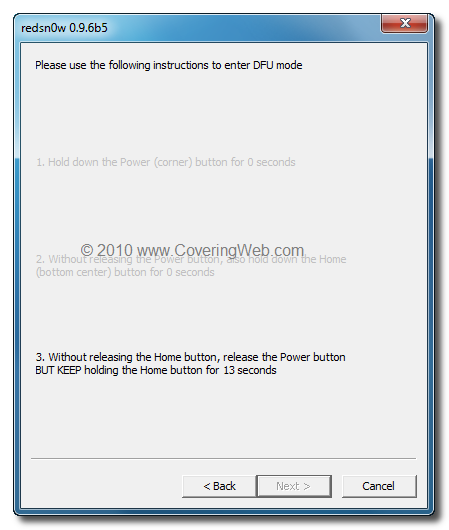
STEP 5: Put your iPhone into DFU mode by following the instructions on the screen:
  • Hold down the Power button for 5 seconds.
  • Without releasing the Power button, also hold Home buttons together for 10 seconds.
  • Now release the Power button but keep holding the Home button for 15 seconds.
STEP 6: Once done, your iPhone will be rebooted and you'll get AirPrint on iPhone 3G ad iPod touch 2G.

From now on, when you open a page in Safari, you'll see the Print button by clicking on the share icon at the bottom. With this option, you can set how many copies of documents you want to copy. You have to select the printer (must be one of the 11 supported printers) and hit Print.
In case your printer is not supported by Apple, you can download and install Printopia to enable AirPrint on non-supported printers. [iPhoneItalia]

Sunday, November 21, 2010

HOW TO: Install Cydia Tweaks & Apps using Redsn0w 0.9.6b3

Earlier today we posted that iPhone Dev Team has released Redsn0w 0.9.6b3 with OpenSSH and APT patches which is really useful for app developers who wants to try their Cydia tweaks and jailbreak apps on iOS 4.2.1.

As you know, Cydia is still broken on iOS 4.2.1 and the new version is not out yet but with the latest version of Redsn0w, you can install jailbreak apps without Cydia installed on your iOS device. Your jailbreak-app package must be in gzip-compressed tar format that Redsn0w can read and also it must be around 15MB in size. The iPhone Dev Team already released OpenSSH package can be download from here which is used to install OpenSSH using the instructions below.

STEP 1: Download Redsn0w 0.9.6b3 (Windows - Mac OS X).

STEP 2: Your device must be on iOS 4.2.1, and you have to save .IPSW firmware of iOS 4.2.1 on your desktop (helpful link).

STEP 3: Once you download Redsn0w, launch it and click Browse then select the suitable iOS 4.2.1 .IPSW file for your iOS device so RedSn0w can recognize it.
STEP 4: In this new page, mark on “Install Custom Bundle” & “Just boot tethered right now” options. Then select the package you want to install as shown in the screenshots below:
STEP 5: After few minutes, the tool will recognize the package then click on Next and you will be guided to put your iOS device in DFU mode.

STEP 6: Once your device in DFU mode, it will reboot with SSH package installed. Now use Cyberduck (Mac OS X) or WinSCP (Windows) to SHH into your device.
From now on, you will need to boot using Redsn0w whenever your device is rebooted until comex make iOS 4.2.x jailbreak untethered. So, whenever you want to SSH into your device, you must first run your device in the “jailbroken state” on every reboot by using “Just boot tethered right now” option in Redsn0w. We'll be happy to answer your questions. [via iPhoneItalia]

UPDATE 1: Here's how to install Cydia on jailbroken iOS 4.2.1 devices via SSH enabled devices, check full guide posted here.

Saturday, November 20, 2010

Downgrade iOS 4.2.1 to iOS 4.1 / 4.0.2 / 4.0.1 on iPhone 4, 3GS, 3G, iPod Touch 4G, 3G

It was possible that you have the curiosity to experiment iOS 4.2.1 GM new features which was released yesterday to iPhone 4, 3GS, 3G, iPod touch 4G, 3G, 2G and iPad, if you still didn't, you can download and jailbreak it now from here. You will note that Cydia still have some issues, the matter which make jailbreak pointless for many.

Moreover the new iOS 4.2.1 GM build has a new baseband version which puts a lot of doubts around the upcoming unlock. Therefore I prepared the downgrade guide from iOS 4.2.1 GM to iOS 4.1, 4.0.2, 4.0.1 or lower.
STEP 1: Download iOS 4.1 or older firmwares for iPhone or iPod Touch.

STEP 2: Put your iPhone in DFU Mode by following this steps,
  • Connect your iPhone to your computer.
  • Turn iPhone off.
  • Start iTunes
  • Hold Power and Home buttons together for 10 seconds or so.
  • Release Power button but keep holding the Home button until your computer recognizes a new USB device.
  • iTunes will now recognize your iPad.

STEP 3: If you are on iPhone 3G or iPod touch 2G (non-MC model) bypass this step. This step is about adding Saurik’s Server address to your system hosts file. This trick make iTunes thinks it is talking to Apple, while it is talking to Cydia while the restoring process.
  • Locate "C:\Windows\System32\drivers\etc\" for Windows and "/etc/" directory for Mac, then locate “hosts” file andOpen it in Notepad (for Windows) or TextEdit (for Mac OS X) and add this at the bottom of the file.
74.208.105.171 gs.apple.com
At last it will be like that, then save it

STEP 4: Now, You will have to restore your iDevice to iOS 4.1, 4.0.2 or 4.0.1  by clicking on the iPhone icon on the left sidebar of iTunes then hold left “alt” button on Mac (“Shift” button on Windows) on the keyboard and then click on “Restore” then release the alt button, Now Select the iOS 4.1, 4.0.2 or 4.0.1 ipsw file you have already downloaded in Step 1 and let iTunes do some automated Steps.
STEP 5: You will need to exit recovery mode, so download TinyUmbrella (Windows / Mac). Run it and the click on “Exit Recovery” button. Your device will now restart normally.

Now you got back to iOS 4.1, 4.0.2 or 4.0.1 and you can jailbreak your iPhone using our guide posted here.

Friday, November 19, 2010

Jailbreak iOS 4.2.1 GM on iPhone 4, 3GS, 3G and iPod touch 4G, 3G with Redsn0w 0.9.6b2 [Guide]

Today we broke the news about the release of iOS 4.2.1 GM for iPhone 4, 3GS, 3G, iPod touch 4G, 3G and iPad. Now you can use Redsn0w 0.9.6b2 to jailbreak all these iOS devices. Moreover I have collected the direct download links for iOS 4.2.1 GM to all above mentioned devices.

You have to note that Cydia doesn't work till now due to some issues on the private APIs used by Cyida which has been changed by Apple. Bud don't worry the developers has fixed these issues and it is only a matter of time as they are waiting for the iOS 4.2.1 public release. For now you can install jailbroken-apps via SSH - until we got the new Cydia version - as you have full root access on your iOS device.

STEP 1: Download redsn0w 0.9.6b2,  iOS 4.2.1 GM and iOS 4.1 final version for iPhone 4, 3GS, 3G, iPod touch 4G, 3G (download links at the end).

STEP 2: Update to 4.2.1 GM firmware using the IPSW file you just downloaded via iTunes.

STEP 3: Launch Redsn0w 0.9.6b2,  and Browse for iOS 4.1 firmware final version (NOT iOS 4.2.1 GM). 

STEP 4: Select "Install Cydia" and click on Next
STEP 5: Now make sure your device is both OFF and PLUGGED IN to the computer before you click “Next”.
STEP 6: At this stage you will need to put your iPhone in DFU mode by holding “Power” button and then while holding the “Power” button, you will now have to hold “Home” button too. Now after few seconds release “Power” button but keep holding “Home” button until installation begins.

STEP 7: You will Get a Jailbroken Device on the latest iOS 4.2.1 GM as soon as the process ends.

NOTE: If you have an unlocked iDevice with ultrasn0w, you have to stay away from Redsn0w, as it updates your baseband to latest version, which is still unlockable till now.

Download iOS 4.1 (Final version) for iPhone 4, 3GS, 3G, iPod touch.
Download iOS 4.2.1 GM for iPhone 4.
Download iOS 4.2.1 GM for iPhone 3GS.
Download iOS 4.2.1 GM for iPhone 3G.
Download iOS 4.2.1 GM for iPod touch 4G.
Download iOS 4.2.1 GM for iPod touch 3G.
Download Redsn0w 0.9.6b2 for Windows and Mac
Download iTunes 10.1 for Windows or Mac

[Download Links via GumballTech]